


Documentation menu
Getting started
Dashboard & analytics
- Dashboard at a glance
- Cost analysis
- Pipeline performance
- Optimization insights
- Knowledge Base
- Connect your AI agent
Managed runners
- Runners overview
- Run your first job
- Migrate from GitHub-hosted
- Latchkey CLI
- The Runners page
- Custom runners (AI Scan)
- Self-healing
- Runner image & software
- Provisioning & warm pools
- Limits & concurrency
Caching
Team & notifications
Billing & plans
Help
Team and roles
Invite teammates by email or shareable link, understand Owner, Admin, and Member permissions, and manage seats.
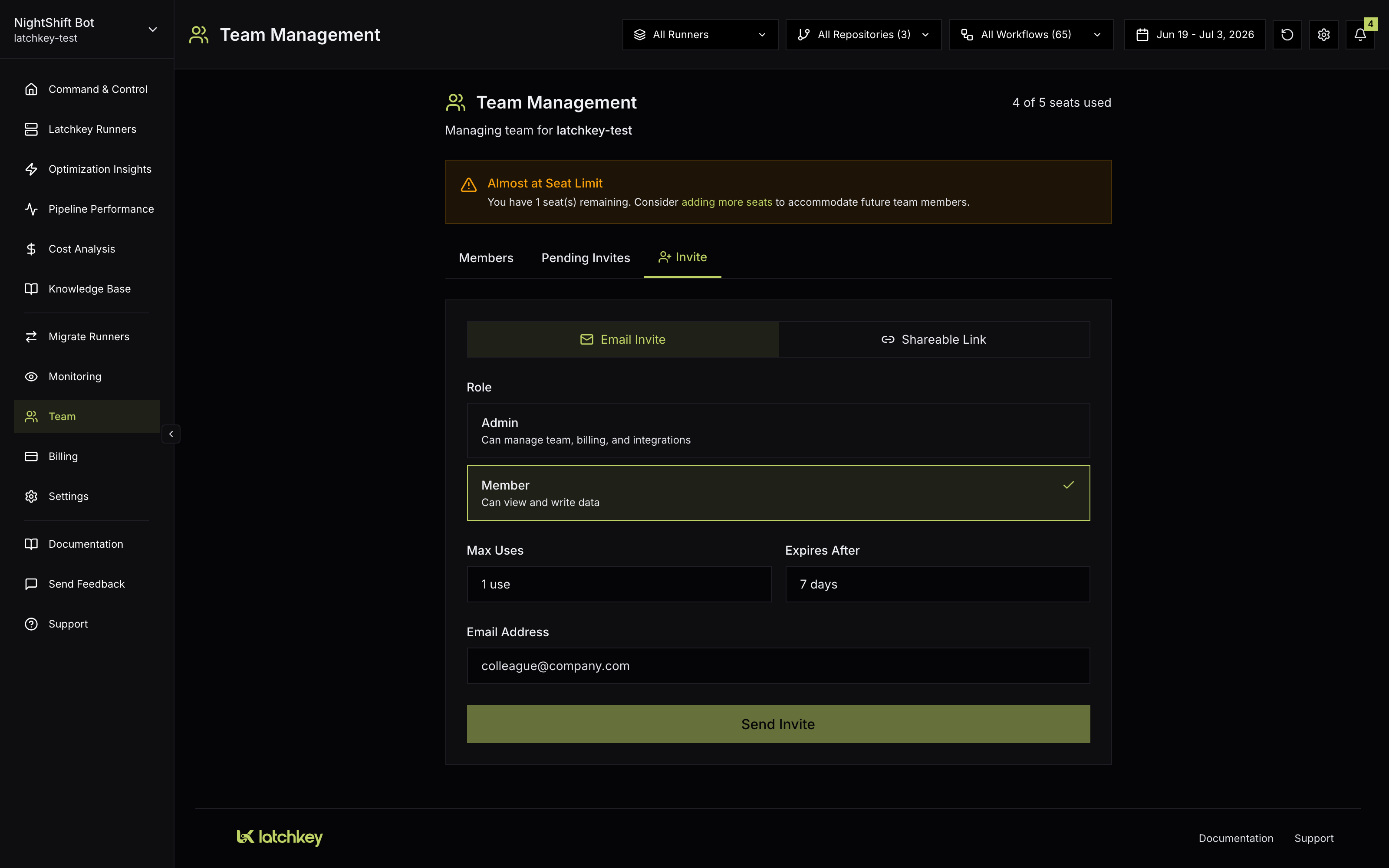
Open Team in the dashboard sidebar (owners and admins) to manage who is in your workspace. The header shows your seat usage, and three tabs cover members, pending invites, and creating new invites.
Roles and permissions#
Two rules keep the hierarchy honest: Admins can only manage Members, and only the Owner can change or remove other Admins.
A pattern that works for most teams, offered as a suggestion rather than a rule: reserve Admin for the few people who actually manage billing, seats, and integrations, and default everyone else to Member. Member is not a restricted experience; members see all analytics, insights, and runner data, and the only things out of reach are team, billing, monitoring, and integration management. Since the owner can promote or demote between Admin and Member at any time, starting people as Members and promoting on need costs nothing.
The Members tab#
The Members tab lists everyone in the workspace with avatar, name, email, join date, and a role badge. Owners and admins promote or demote between Admin and Member with an inline role dropdown, and removing a member asks for confirmation first. The page header shows how many seats are in use ("X of Y seats used").
Inviting people#
Open the Invite tab
Choose between an Email Invite (sent directly to one address, single-use by default) and a Shareable Link (paste it in your team chat; can allow multiple uses).
Pick the role
Invites can grant Admin ("can manage team, billing, and integrations") or Member ("can view and write data"). Owner cannot be granted by invite; use Transfer Ownership instead.
Set limits
Choose the maximum number of uses (1, 5, 10, or 25 uses, No limit, or a custom number; email invites default to 1 use, shareable links to No limit) and an expiry (1, 3, 7, 14, or 30 days; 7 by default). Invites can be revoked any time from the Pending Invites tab.
Send or share
Email invites are delivered by Latchkey. Link invites give you a URL like latchkey.dev/invite/<code> with a copy button.
Email invite
- Delivered by Latchkey to one address
- Single-use by default
- Best when you are onboarding a specific person
Shareable link
- A
latchkey.dev/invite/<code>URL to paste in team chat - Can allow multiple uses: 1, 5, 10, 25, a custom number, or No limit (the default)
- Best when a whole group needs to join at once
Pending invites#
The Pending Invites tab tracks every unexpired, unaccepted invite, with a count badge on the tab itself. Each invite card shows the role it grants, an expiry countdown ("Expires in N days", "Expires tomorrow", "Expired"), and the use count against its limit, for example "2/10 uses". A revoke button on each card lets you shut down any invite before it expires.
Invite hygiene#
A few habits, suggested rather than required, that keep invites from becoming a loose end:
- Prefer single-use email invites for individuals, and save multi-use links for genuine batches. A link forwarded beyond its intended audience is the classic way an invite ends up somewhere unexpected.
- Keep expiries short. The 7-day default is a good ceiling for links posted in chat: the conversation scrolls away, and the link should too. The options are 1, 3, 7, 14, or 30 days.
- Sweep the Pending Invites tab occasionally and revoke anything that was never used.
- Invite as Member by default; the owner can promote to Admin later when the need is real.
What the invitee sees#
The invite link shows the workspace name, the role they will join as, and the expiry. If they are not signed in, they can sign in or create an account right there; after signing in, the invite is accepted automatically and they land in the dashboard. If the workspace is out of seats, they see a clear "cannot join" message and you will need to add a seat first.
Seats#
Launch includes 3 seats and Scale includes 5; extra seats are $5/month each. Seat usage shows in the Team header, and as you approach the limit the page warns you with an "Almost at Seat Limit" banner ("You have N seats remaining") and then a "Seat Limit Reached" banner; the warnings link to billing, where owners and admins can add seats. Removing a member frees their seat immediately.
When planning seats, count the people who need the dashboard: these are dashboard seats, gating who can sign in to view analytics and manage the workspace. Because removing a member frees the seat immediately, seats recycle cleanly when someone leaves, and at $5/month, keeping one spare seat is a cheap way to avoid a blocked invite at the worst possible moment.
Transferring ownership and leaving#
The owner can promote or demote members between Admin and Member, remove members, and use Transfer Ownership to hand the workspace to another member. Transfer starts from the target member's card (the crown icon), and a confirmation dialog spells out what happens: they become the new Owner, you are demoted to Admin, and you cannot undo the action yourself. Typing TRANSFER confirms the handoff. Deleting the workspace entirely lives in Settings, Account and is owner-only.
Multiple workspaces#
You can belong to any number of workspaces (your own organization's, plus any you were invited into). The workspace switcher in the dashboard sidebar's user menu moves between them; each workspace has its own plan, team, repositories, and data. Latchkey remembers your last-used workspace across sign-ins.
Common questions#
Can a workspace have two Owners?
No. There is exactly one Owner per workspace: the person who installed the GitHub App, unless ownership was transferred. For a second person with full day-to-day control, grant Admin; to hand the workspace over entirely, use Transfer Ownership.
Can an invite grant the Owner role?
No. Invites grant Admin or Member only. Ownership moves exclusively through Transfer Ownership.
What happens if someone opens an invite when we are out of seats?
They see a clear "cannot join" message instead of joining. Add a seat first; near-limit warnings in the Team header link to billing, where owners and admins can add one.
Why can I not see the Team page?
The Team page is for owners and admins; members use the dashboards without team management. On the Developer plan, team collaboration is disabled entirely, so there is no team to manage.
Can I be in more than one workspace?
Yes, any number: your own organization's plus any you were invited into. Each has its own plan, team, repositories, and data, and the workspace switcher in the sidebar's user menu moves between them.