


Documentation menu
Getting started
Dashboard & analytics
- Dashboard at a glance
- Cost analysis
- Pipeline performance
- Optimization insights
- Knowledge Base
- Connect your AI agent
Managed runners
- Runners overview
- Run your first job
- Migrate from GitHub-hosted
- Latchkey CLI
- The Runners page
- Custom runners (AI Scan)
- Self-healing
- Runner image & software
- Provisioning & warm pools
- Limits & concurrency
Caching
Team & notifications
Billing & plans
Help
AI Insight
How AI Insight turns nightly deterministic analysis into quantified findings, each carrying exactly one action Latchkey can take for you.
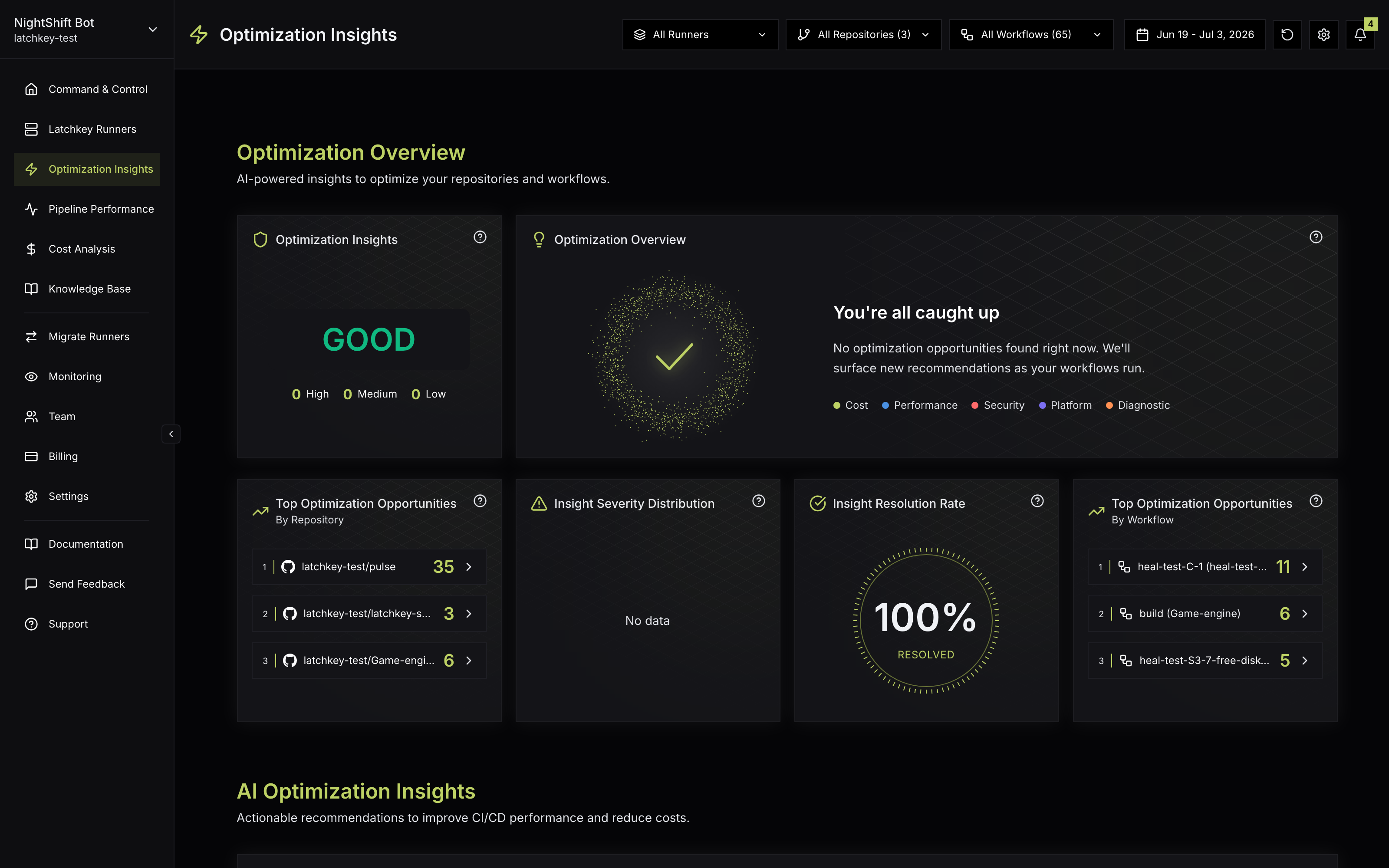
The AI Insight page (labeled Optimization Insights in the sidebar) is built on one division of labor: self-heal fixes it, Insight decides it. Failures that can be repaired safely are fixed on the runner without you; everything that deserves human judgment, spend tradeoffs, security hygiene, reliability patterns, arrives here as a finding with a number on it and one action Latchkey can take for you. You approve; Latchkey does the work.
How findings are made#
There is no button to press and no agent to babysit: the page's meta line reads "Refreshed nightly", and findings appear when the detectors find something worth your attention. The explanation paragraph on each card is prefixed "Latchkey analysis"; it exists to tell you why this happened and why it matters, not to pad the page. If nothing has surfaced yet, the page reads "AI Insight findings will appear here once nightly analysis runs."
The hero: fixed versus waiting#
Self-heal, last 30 days
- Failures repaired on the runner, badged Autonomous
- Dev-hours saved, at a flat 0.5 dev-hours per auto-fixed run
- "Nothing here needs approval": it already happened
Insight, ready to apply
- The count of open findings waiting on your judgment
- Each finding is one decision with one action
- Apply all N opens the PRs one by one (owners and admins)
The Apply all N button on the right rail applies every open finding with an apply action, opening the pull requests one at a time with a running "Applying X of Y" progress state, then "All PRs opened" when it finishes. Like individual applies, it is available to owners and admins.
The Self-heal outcome report#
Below the hero, one card reports what self-heal did on its own:
- Failures auto-fixed: runs that failed, were repaired on the runner, and merged back green with no human in the loop.
- Dev-hours saved: the auto-fixed count at a flat 0.5 dev-hours per run.
- Left for you: failures self-heal could not fix across the patterns Latchkey flagged, linking to the reliability insights below and to the Runners page.
The four sections#
Findings are grouped into four sections, rendered in this order and only when non-empty:
Anatomy of an insight card#
- An accent label: Cost, Reliability, Regression, Security, or Adoption.
- A quantified headline: a dollar figure, a time figure, or a counted risk. Unquantified advice does not make the page.
- The "Latchkey analysis" paragraph: why this happened and why it matters, written by the thin AI layer.
- The action, labeled per finding ("Pin to SHA", "Add Latchkey caching"), plus Preview to see the exact change, Evidence for the underlying data, and Dismiss.
Dismiss hides the finding, and it will not resurface unless the underlying conditions change, so dismissing is a real decision, not snoozing. Where a finding proposes a fix, the card also notes whether it is "Verified by run" or a "Proposed fix, not verified by a passing run", so you know how much scrutiny the diff deserves.
Self-heal proposal findings add one more control: Stop proposing. After a confirm step, Latchkey permanently stops opening PRs for that failure class on that repository until you undo it under Settings, Self-Healing, Declined fixes. Like applying, it is limited to owners and admins.
Applying a finding#
Preview the change
Preview shows exactly what Latchkey will change; Evidence shows the data behind the finding. Nothing is hidden behind the button.
Apply
Click the finding's action. Latchkey opens a pull request on a branch named latchkey/insight-<detector>-<hex>, titled like "Latchkey insight: pin GitHub Actions to commit SHAs" or "Latchkey insight: downsize runner in <path>". Only owners and admins can apply.
Review and merge on GitHub
The PR is yours to review, edit, and merge like any other; nothing merges automatically. The card tracks the terminal state: "PR #N opened" with a View PR link, or Enabled for settings-style findings.
Hand a finding to your own coding agent#
Some findings are better fixed by an agent that lives in your codebase. For those, the card's popover offers two options: Hand off to your coding agent gives you a ready-made prompt (Copy prompt) to paste into your agent, and Set up MCP creates an API key named coding-agent and shows the claude mcp add command to connect it. See Connect your AI agent for the full MCP setup.
Staying informed#
- New insights found: the nightly scan surfaced new savings or risks.
- Insight applied: a pull request opened from an insight was merged.
Both are informational notification types you can toggle per channel; see Notifications.
FAQ#
Why do I have no findings yet?
Detectors run nightly, so a freshly monitored repository has nothing until the next scan completes, and a healthy, well-configured setup can legitimately sit at zero open findings. The empty state reads "AI Insight findings will appear here once nightly analysis runs."
Will Latchkey ever change my workflows without me?
No. Every apply opens a pull request that you review, edit, and merge yourself. The only thing that acts without approval is self-heal, and it acts on the runner during a run, never on your source; the outcome report on this page is where you see what it did.
What is the difference between Dismiss and Stop proposing?
Dismiss hides one finding; it stays hidden unless the underlying conditions change. Stop proposing is broader and permanent: Latchkey stops opening PRs for that failure class on that repository until you undo it under Settings, Self-Healing, Declined fixes.
Who can apply findings?
Owners and admins, whether applying one finding or using Apply all. Everyone else can read findings, previews, and evidence.