


Documentation menu
Getting started
Dashboard & analytics
- Dashboard at a glance
- Cost analysis
- Pipeline performance
- Optimization insights
- Knowledge Base
- Connect your AI agent
Managed runners
- Runners overview
- Run your first job
- Migrate from GitHub-hosted
- Latchkey CLI
- The Runners page
- Custom runners (AI Scan)
- Self-healing
- Runner image & software
- Provisioning & warm pools
- Limits & concurrency
Caching
Team & notifications
Billing & plans
Help
Notifications
Every notification Latchkey can send, the delivery channels, severity tiers, and how to tune them per event type.
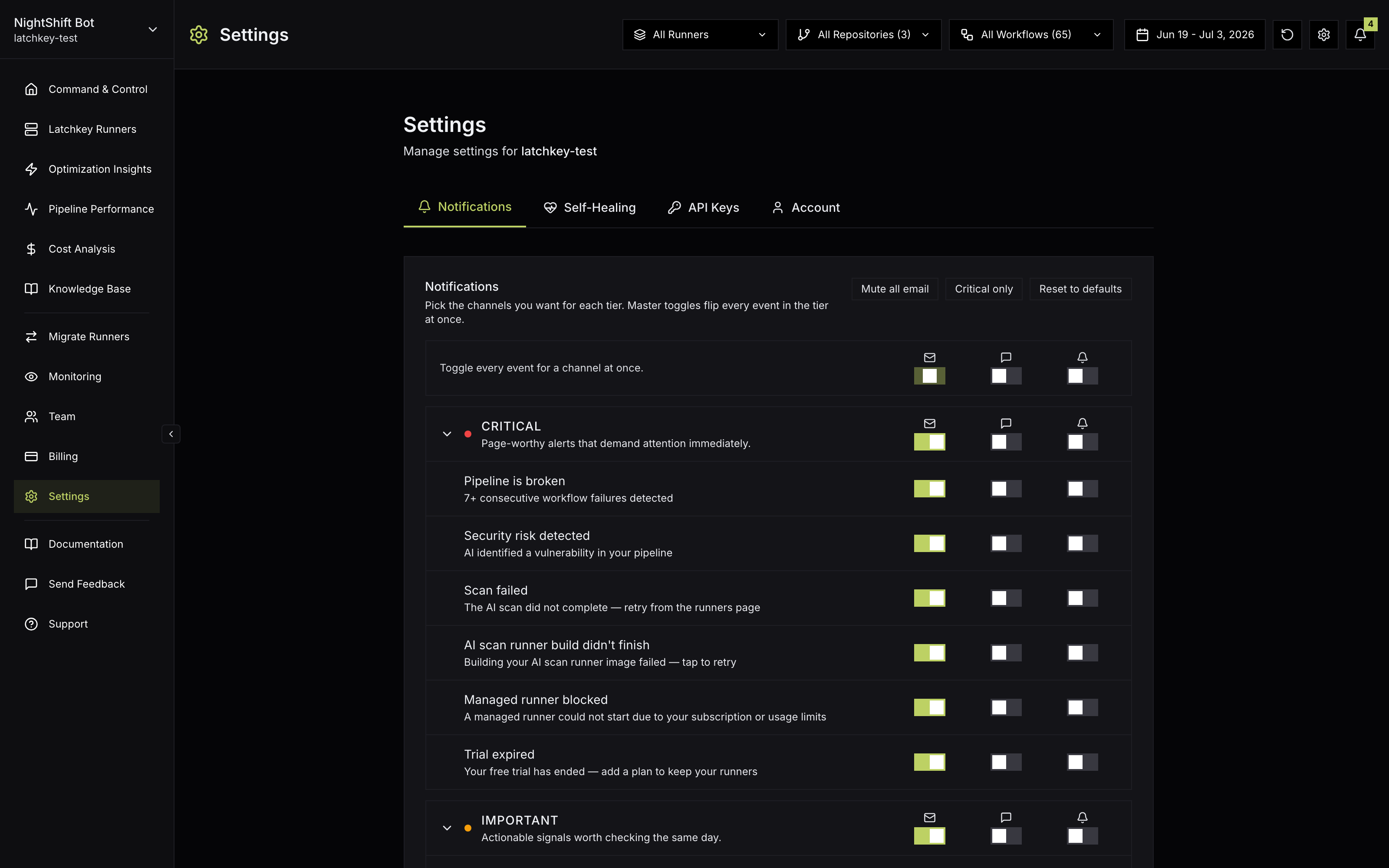
Latchkey notifies you when something needs attention: a pipeline breaking repeatedly, an AI scan waiting for your approval, your trial or free minutes running out, or new insights worth reviewing. Configure everything in Settings, Notifications.
Channels#
Everything also lands in the in-app notification bell in the dashboard header, regardless of channel settings. The panel opens under a "Notifications" header with your unread count, Mark all read clears the backlog in one click, and the footer keeps expectations straight: "Showing the last 7 days - Manage preferences in Settings".
Severity tiers and defaults#
Event types are grouped into three tiers: Critical, Important, and Informational. Most channels start off by default, with three exceptions: email is on for "Trial ending soon" and "Trial expired", so an expiring trial never passes silently; email and Slack are both on for "Managed runner blocked" and "Free tier running out", because nobody opts in to a notice about compute they do not yet know has stopped; and the informational-tier weekly digest is on, so you get a weekly summary without opting in. Runner blocks caused by a repository that is not enabled, or by an expired trial, stay off until you turn the event on. Email and Slack are chosen per event type, while browser push and the digest follow the tier. Master toggles per tier and per channel flip whole groups at once.
The noisier types also carry their own frequency caps: "Managed runner blocked" sends at most once per day, "Free tier running out" at most once per day per threshold on a workspace with no card and once per calendar month per threshold on a subscription, and "Pipeline is broken" fires at 7 consecutive failures and escalates once more at 20 rather than pinging on every red run. The first notification carries all the signal; repeats would only train you to ignore the channel.
What can notify you#
| Notification | Fires when | Tier |
|---|---|---|
| Pipeline is broken | 7 or more consecutive workflow failures are detected; escalates once more at 20 | Critical |
| Scan failed | The AI scan did not complete; retry from the runners page | Critical |
| AI scan runner build didn't finish | Building the AI scan runner image failed; tap to retry | Critical |
| Managed runner blocked | A managed runner could not start because of your subscription or usage limits; at most once per day | Critical |
| Trial expired | Your free trial has ended; add a plan to keep your runners | Critical |
| Scan ready for review | Your AI repo scan finished and the runner config needs your approval | Important |
| AI scan runner is ready | Your AI-built runner image finished and is ready to use | Important |
| Free tier running out | You crossed 80%, then 100%, of included runner minutes; at most once per day per threshold with no card on file, and once per calendar month per threshold on a subscription, where it reports metered overage instead | Important |
| Trial ending soon | 3 days or less remain on your trial | Important |
| New insights found | The nightly scan found new savings or risks to review | Informational |
| Insight applied | An applied insight's pull request was merged | Informational |
A suggested baseline#
Because most events still start off, pick a posture deliberately rather than waiting for the alert you wish you had received. This one works for most teams:
| Tier | Suggested routing | Reasoning |
|---|---|---|
| Critical | Email, plus Slack | Act-now events: a broken pipeline, a failed scan, a blocked runner launch, an expired trial. They belong where the team looks first. |
| Important | Email; add Slack for the free-tier and trial warnings | Day-level urgency. The trial emails and the free-tier warnings are already on by default, and the free-tier warning already posts to Slack; the rest of this tier is worth putting in front of the whole team before a block happens, not after. |
| Informational | The weekly Digest toggle | New and applied insights read better in one weekly batch than as a trickle of single emails. |
Two notes on applying it. Slack routing is admin-only, while every member keeps their own email, push, and digest choices, so the baseline is really two separate decisions: the shared Slack channel and your personal channels. And browser push is best treated as personal: enable it for yourself if you are the person who acts on CI issues first, after granting permission on the Notifications settings tab.
How the weekly digest behaves#
The digest is the informational tier's home. Low-urgency events (new insights found by the nightly scan, an applied insight's pull request getting merged) roll up into one weekly email instead of arriving one at a time. That is also why informational types show a Digest toggle in the settings matrix instead of a per-event email toggle: the choice you are making is whether a type participates in the roll-up.
A suggested habit: treat the digest as a weekly review queue. Nothing in it needs same-day action, but unreviewed insights compound if nobody looks at them; a short weekly skim, with Optimization insights open in the next tab, is usually enough.
Tuning your preferences#
- Each event type has per-channel toggles in the settings matrix; informational types expose a Digest toggle instead of per-event email.
- Shortcuts cover the broad changes: master toggles flip a whole tier or a whole channel column at once, Mute all email silences email in one click, Critical only keeps just the page-worthy alerts, and Reset to defaults restores the standard setup.
- Nothing applies until you click Save changes; the page confirms with "Preferences saved."
- Slack settings are admin-only; members keep their personal email, push, and digest choices.
- Every notification email also links back to your notification settings, so you can turn an event off from the inbox side.
What notifications are on by default?
Most events start off, so a new workspace is quiet by design. The exceptions are email for "Trial ending soon" and "Trial expired", and email plus Slack for "Managed runner blocked" and "Free tier running out". Turn on what you want per event using the matrix, or use the master toggles and bulk buttons to set a baseline quickly.
Which channels can each event use?
Email, Slack and browser push, chosen per event type across the Critical, Important and Informational tiers. Informational events use a weekly Digest toggle instead of firing individually, and everything lands in the in-app bell regardless of channel.
How many event types are there?
Eleven, grouped into three severity tiers. Critical events are the ones worth interrupting someone for; Informational events are better read weekly, which is what the Digest is for.